Microsoft Azure 2: Deploying Web Apps using Cloud Shell

Deploying web apps to the Azure cloud is a pretty straightforward task. For this tutorial, I will be using the Azure Cloud Shell to deploy my app.
Open Portal
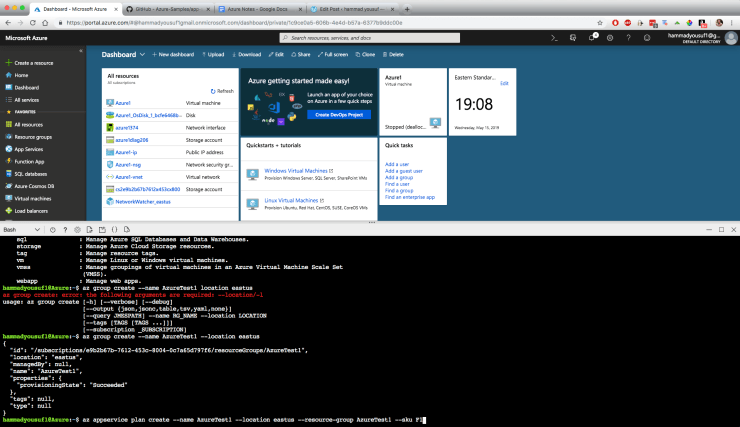
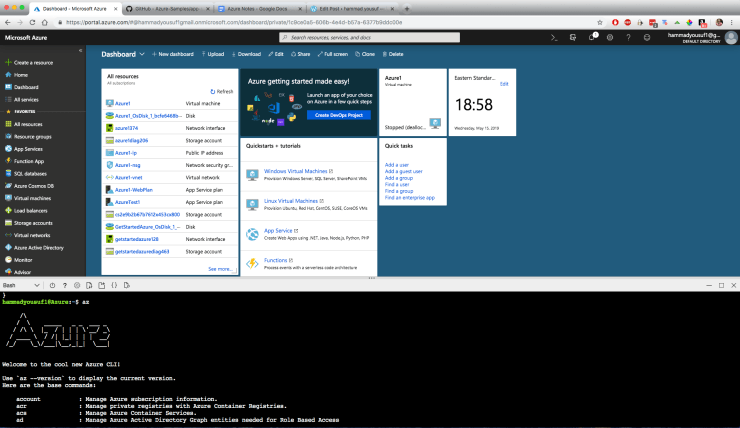
1. I will be using the V2 version of the command line tools for this. Typing in “az” will bring up this screen right here at the bottom. For those of you wondering how I brought up this Cloud Shell, you can simply go to the top of your Azure ribbon and click on the >_ which will open up your command line.
Create Resource Group (AzureTest1)
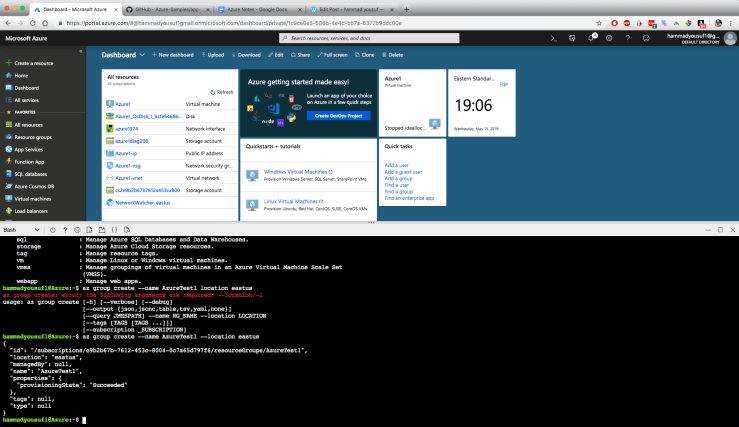
2. The first step in deploying the web app will be to create resource groups. For this you can simply type, “az group create –name AzureTest1 –location eastus” I named this resource group: AzureTest1 and the location is East US since that’s where we are based.
Create appservice.png
3. Next, we have to create the app service. Each and every single app deployment needs to have this incorporated. So for this, we will enter, “az appservice plan create –name AzureTest1 –location eastus –resource-group AzureTest1 –sku F1″ The next step is going to be a bit of digression. The web app I am deploying in this scenario is something I am taking from GitHub’s repository. The internal option for the size is sku, and for free it is F1.
github code repository for webapp.png
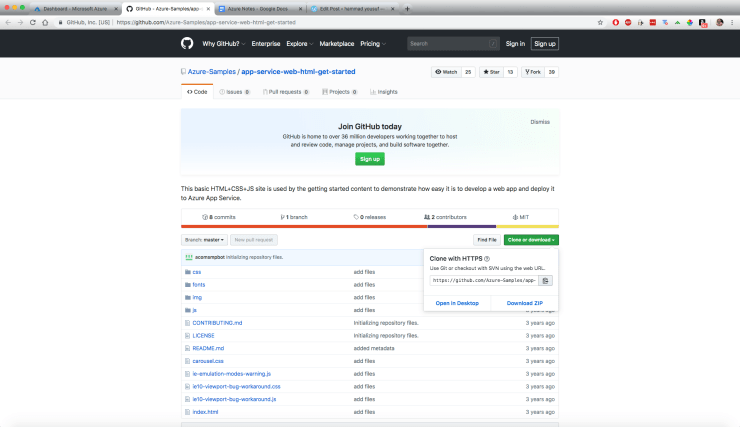
4. On GitHub I was able to use this app. This app’s code can be cloned and pasted into my commands on the Cloud Shell when I’m deploying the app. The link to this page is, https://github.com/Azure-Samples/app-service-web-html-get-started
git repository linking
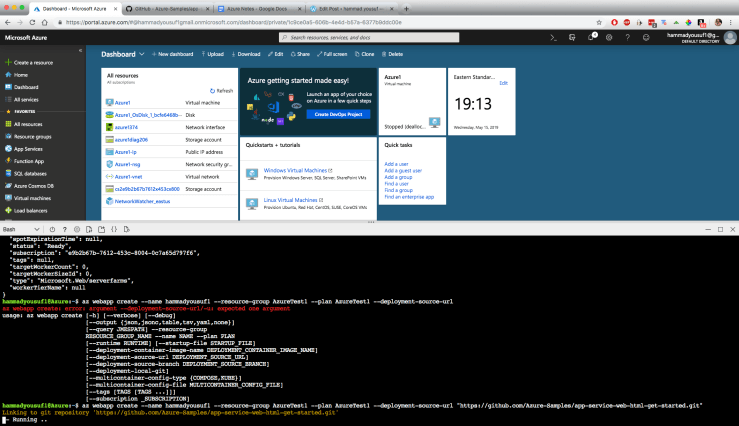
5. This step will see me adding the web app. The web app name that I have chosen in this case is hammadyousuf1. Every thing else in between is from previous code, until the deployment source URL. The deployment source URL is going to be where I paste in the GitHub clone URL for the app. I am going to type in “az webapp create –name hammadyousuf1 –resource-group AzureTest1 –plan AzureTest1 –deployment-source-url “https://github.com/Azure-Samples/app-service-web-html-get-started.git” Now I can sit back and watch my app being deployed.
deployment 1
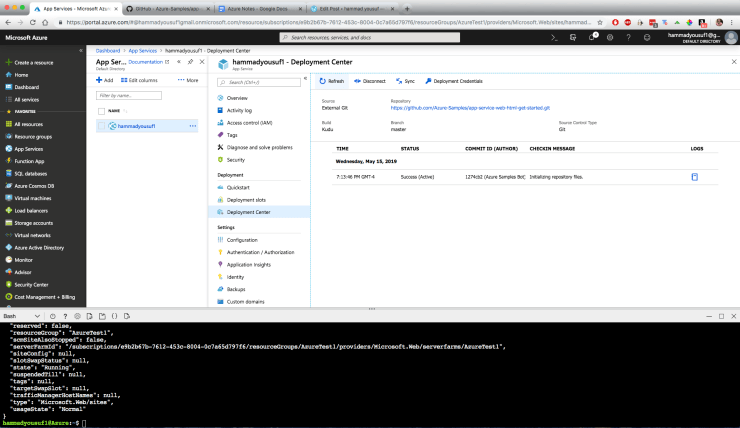
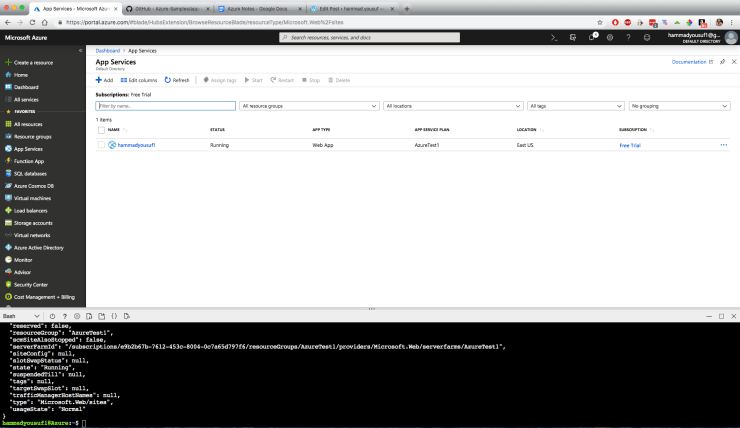
6. Our web app is deployed! To see our app we can navigate to the “App Services” tab on the left side. The web app thehammadyousuf1 is now visible and deployed. If I go down to the deployment center it’ll show my application from GitHub which is out from Azure.
deployment 2.png
7. Complete! 


search previous next tag category expand menu location phone mail time cart zoom edit close