Microsoft Azure 4: Setting up Nginx Web Server using Cloud Shell
Nginx is a very popular, free, open-source web server. It’s mostly run on UNIX, Linux, Mac OS, and Windows. In this part of my notes, I want to show how to use Nginx to serve a basic web page. The web page itself will be simply displaying my VM’s hostname.
When it comes down to configuring a VM we actually have a multitude of options to work with. We can connect directly and interactively configure our system. For example, a Windows system allows us to create a Remote Desktop session to connect to the UI of our remote Windows computer as if you were using it. Linux operating systems allow us to create an SSH connection to securely work with remote Linux systems from the terminal. Manual configuration is also a viable option, however as systems become more complex, it becomes more feasible to simply automate deployments. In this example, I am going to set up and configure Nginx from the Azure Cloud Shell in my Azure sandbox. I am going to be configuring using a feature of the Linux-based Azure VM’s called the Custom Script Extension.
Custom Script Extension – Simple method to download and run scripts on Azure VM’s. Allows storage of scripts in Azure.
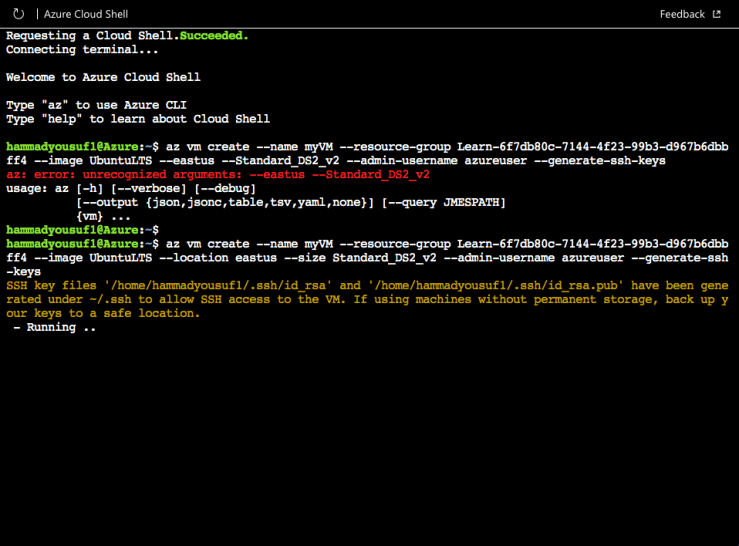
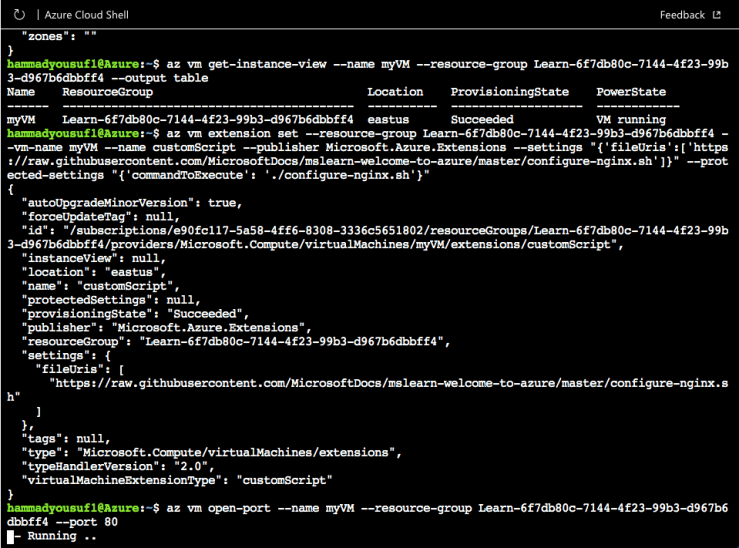
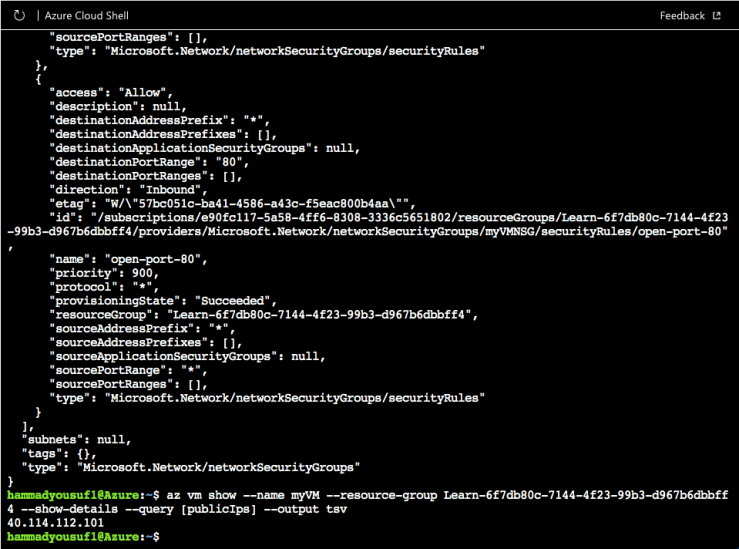
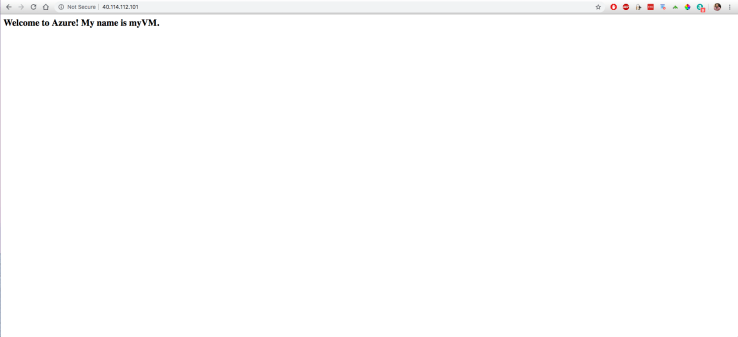
1. Before doing any server configuring, I first need to create the VM i’m going to be working with. In this case, I follow the sandbox’s version of the resource group container and the size.2. Simply verifying that the VM is up and running. My VM is called “myVM.”3. This is where I will use the Custom Script Extension to configure Nginx remotely on my VM from Azure Cloud Shell. In addition, I’m going to configure the firewall in this scenario to permit inbound network access on port 80 (HTTP)…The command for the Custom Script Extension is az vm extension set. This will download and execute a Bash script that will install Nginx. The process configures Nginx and also sets the contents of my web page. This can take some time to process.4. To open port 80 (HTTP) through the firewall, I need to run the command, az vm open-port.5. Now that we have our Nginx server up and running, we can quickly verify whether or not its up and running. In order to see the VM’s public IP address, we have to run the command, az vm show. The IP address immediately shows up and in my case it’s 40.114.112.1016. In a new tab, I copied and pasted my public IP address into the search bar. This brought me to the web page that displays my VM’s hostname. Complete!



 hammad yousuf