Microsoft Azure 5: Using Policies to Enforce Standards
In my quest for becoming a cloud computing guru, I’m constantly coming across new methods and tools within the actual cloud platforms, in this case Microsoft Azure. One thing that I recently came across that I think is pretty neat is how policies can be enforced within the cloud to ensure high standards. For example, I might be assigned a task for organizing resources in a resource group for which I’ve applied tags to the resources so that they can be used in billing reports and monitoring solutions.
Microsoft Azure has this neat service called Azure Policy which allows you to create, assign, and manage policies. Policies essentially apply and enforce rules that the resources need to follow. Policies can enforce these rules when the resources are generated and can be further evaluated against existing resources to give a good insight into compliance. Policies can enforce things such as only allowing certain resource types to be created, or only allowing resources in specific Azure regions around the world. In addition, naming conventions can be enforced across Azure environments so that consistency and uniformity can be maintained.
Creating Policy Definition
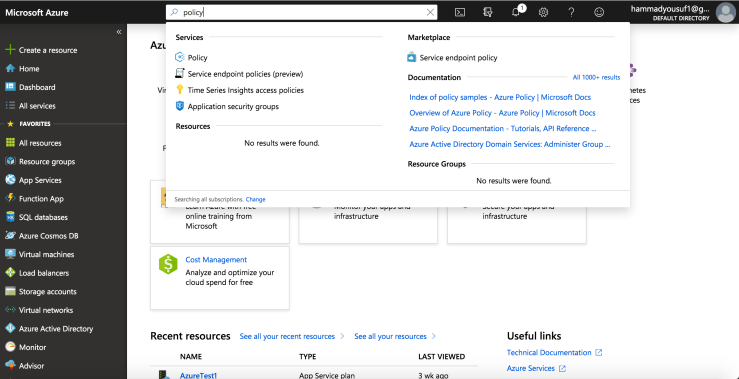
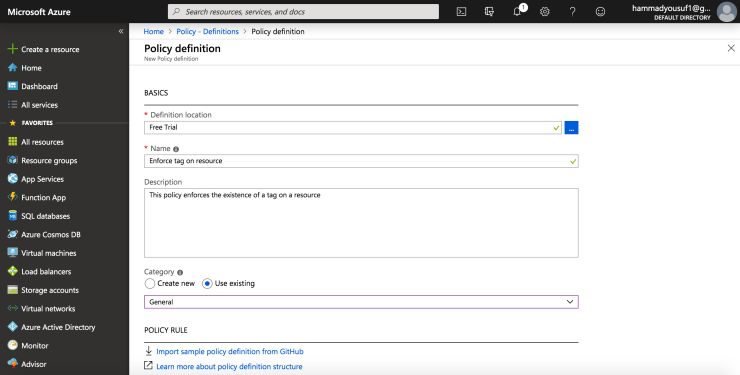
1. For the first step I started out here on my Azure portal. In the search box in the top navigation bar, I searched for “Policy” and selected the first option for the Azure Policy service.2. Once I’ve reached the Azure Policy, on the left menu, I have to select “Definitions” which is right under “Authoring.” This will take me directly to the location where I can see current policies define new ones.3. Once you reach this page, you should see a list of built-in policies that can be used. In this specific case, I’m going to create my own custom policy. For that, I can click “+Policy definition” in the top menu.4. This brings up the “Policy definition” page. To set the “Definition location” I have to click the blue …. and I select the subscription for the policy to be stored in, which should be the same as the resource group. For the name, I named it “Enforce tag on resource,” and the “Description” is “This policy enforces the existence of a tag on a resource.” For the “Category” I select “Use existing” and finally select “General” in the drop down menu.5. For the “Policy Rule,” go ahead and insert the JSON that I entered in for defining and creating the new policy.




 hammad yousuf